Negotiate (RFQ)
Negotiation
As part of the negotiation tasks, the project's P2i Senior User or P2i Regional Manager can download and complete the department's Letter of Intent template. Once that task has been completed, the project's procurement authority can send the Letter of Intent via the RFQ messaging area to communicate with the supplier and summarise the negotiation outcome in the RFQ messaging area.
Note If you are not negotiating the terms and details of the RFx, include this in the notes as you complete (close off) this task. You will still need to complete this task in the workflow and promote the the RFQ, Go to Market document set and Evaluation Report.
Negotiate (RFQ)
-
Click the Negotiate (RFQ) task.

-
Review the Task Instructions.
-
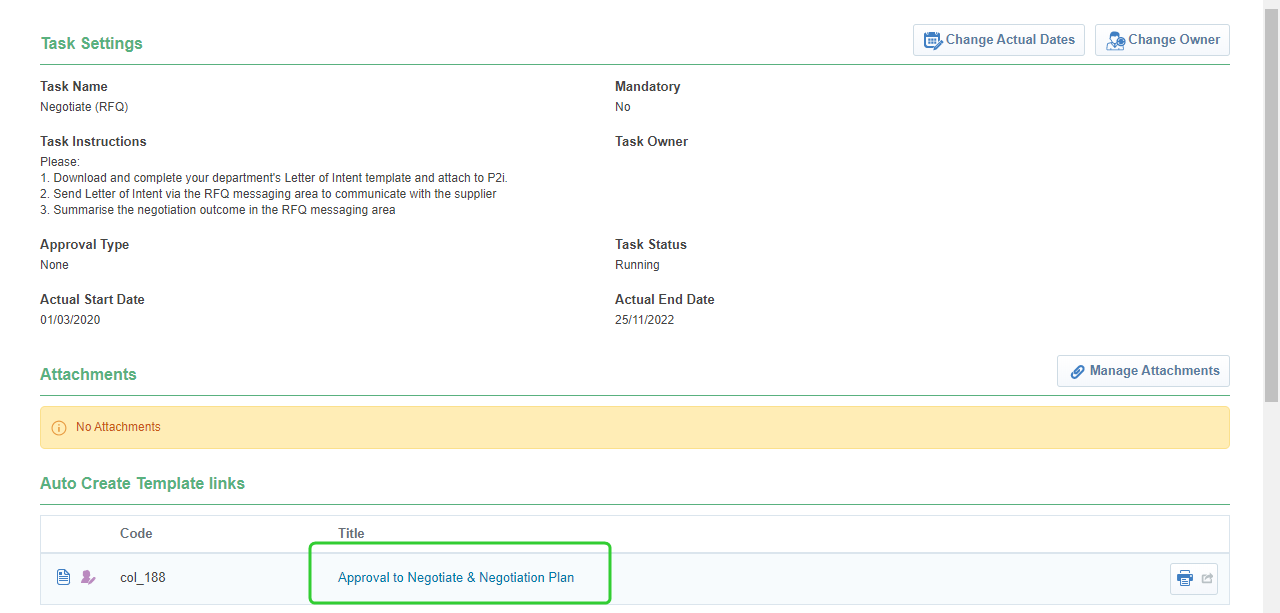
Click Approval to Negotiate & Negotiation Plan object under Auto Create Template links.
-
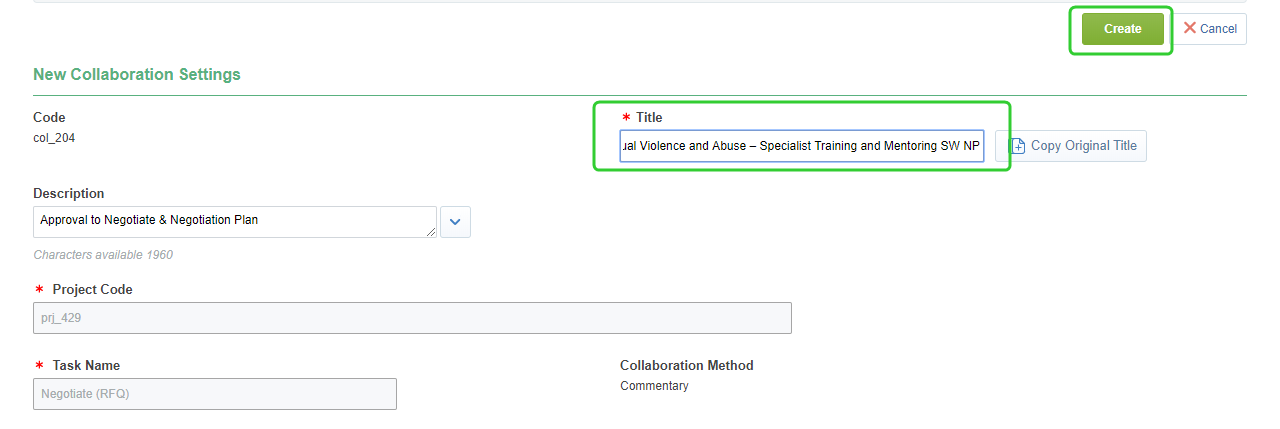
Enter a Title for the Approval to Negotiate & Negotiate Plan collaboration and click Create.
-
Click Edit Response

-
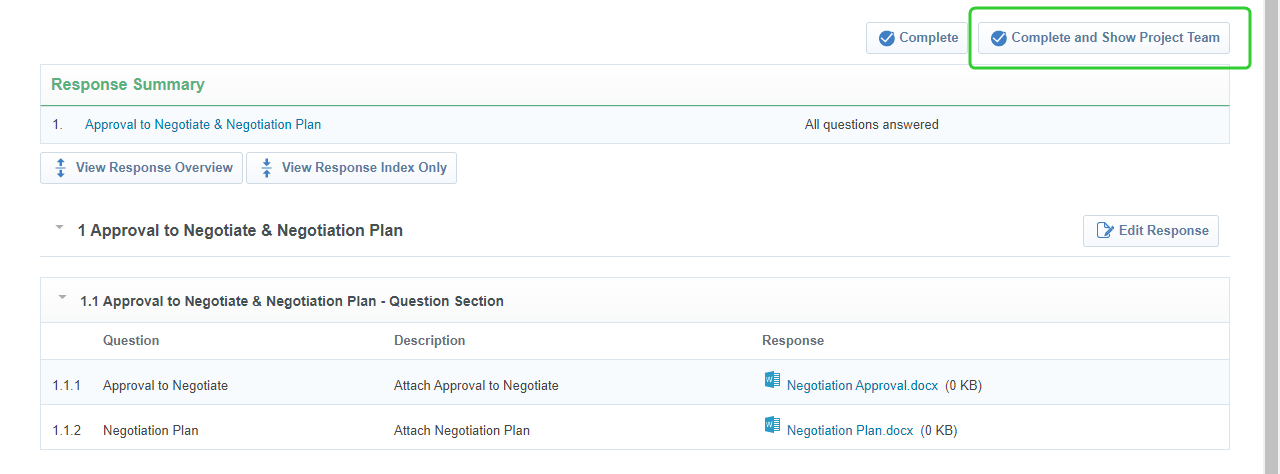
Attach the Approval to Negotiate and Negotiate Plan and click Save and Return.

-
Click Complete and Show Project Team.
Note Complete the Letter of Intent and notify the project's procurement authority that it is ready to send to the supplier. If the P2i Senior User or P2i Regional Manager is required to perform this task, they need to made the email recipient. Refer to the topic Publishing and Monitoring the RFQ.
-
Click the Negotiate (RFQ) task.

-
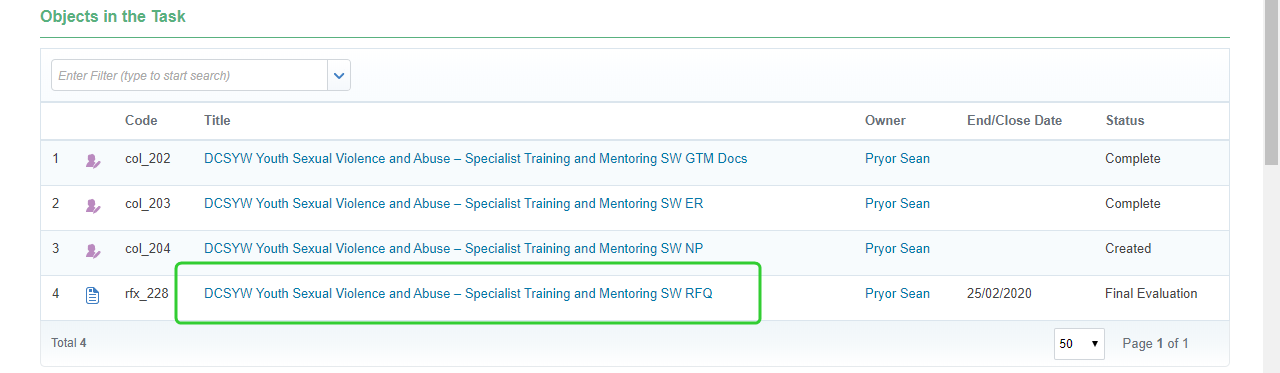
Click the RFQ to open it.
-
Click the Messages tab and click Create Message.
-
Create the content of the message including a summary of the negotiation outcomes, click Attachments and attach the Letter of Intent. Select the supplier from the Recipient list and click Send Message.

-
Click the Negotiate (RFQ) link.

-
Click Complete Task for Negotiate (RFQ).

-
Select Confirm Funding Availability (RFQ) to Promote to Task for all objects in the task.
-
Click Confirm

-
Add any comments relevant to completing this object.
-
Attach any files relevant to completing this object.
-
Click Confirm.
Note Now confirm funding availability for the RFQ. Refer to the topic, Confirm Funding Availability
Tip For naming consistency, use the Project Title and add NP at the end for Negotiation Plan.